
How to Install and Use FilmPlus Ad-Free on Fire TV Stick
Install FilmPlus Ad-Free on Fire TV Stick, set it up the right way, and fix buffering, crashes, or no data errors.
FilmPlus Ad-Free is a lightweight movie and TV app for Fire TV Stick that does not need a subscription or registration. One thing to know up front: FilmPlus does not play video on its own, it hands playback to a separate player, and Fluid Player is the one to use. You install both from the same store, so it only adds a minute. The easiest way to get it all in 2026 is through TV Wizard or LinkDrop, then keep both updated and clear the cache if playback starts acting up.
Before you install
FilmPlus is not available in the Amazon App Store, so it has to be sideloaded.
If Downloader is not installed yet, or Install Unknown Apps is not turned on for Downloader, follow my full Fire Stick sideloading guide. If Developer Options is missing on your Fire Stick, use this quick guide to unlock Firestick Developer Options.
You also want these basics ready:
- Update your Fire TV Stick to the latest Fire OS version available.
- Use a stable internet connection, preferably strong 5 GHz Wi-Fi or wired Ethernet if your setup supports it.
- Keep enough free storage for the app and its cache.
- Close background apps if your Fire Stick feels slow.
Get the store first
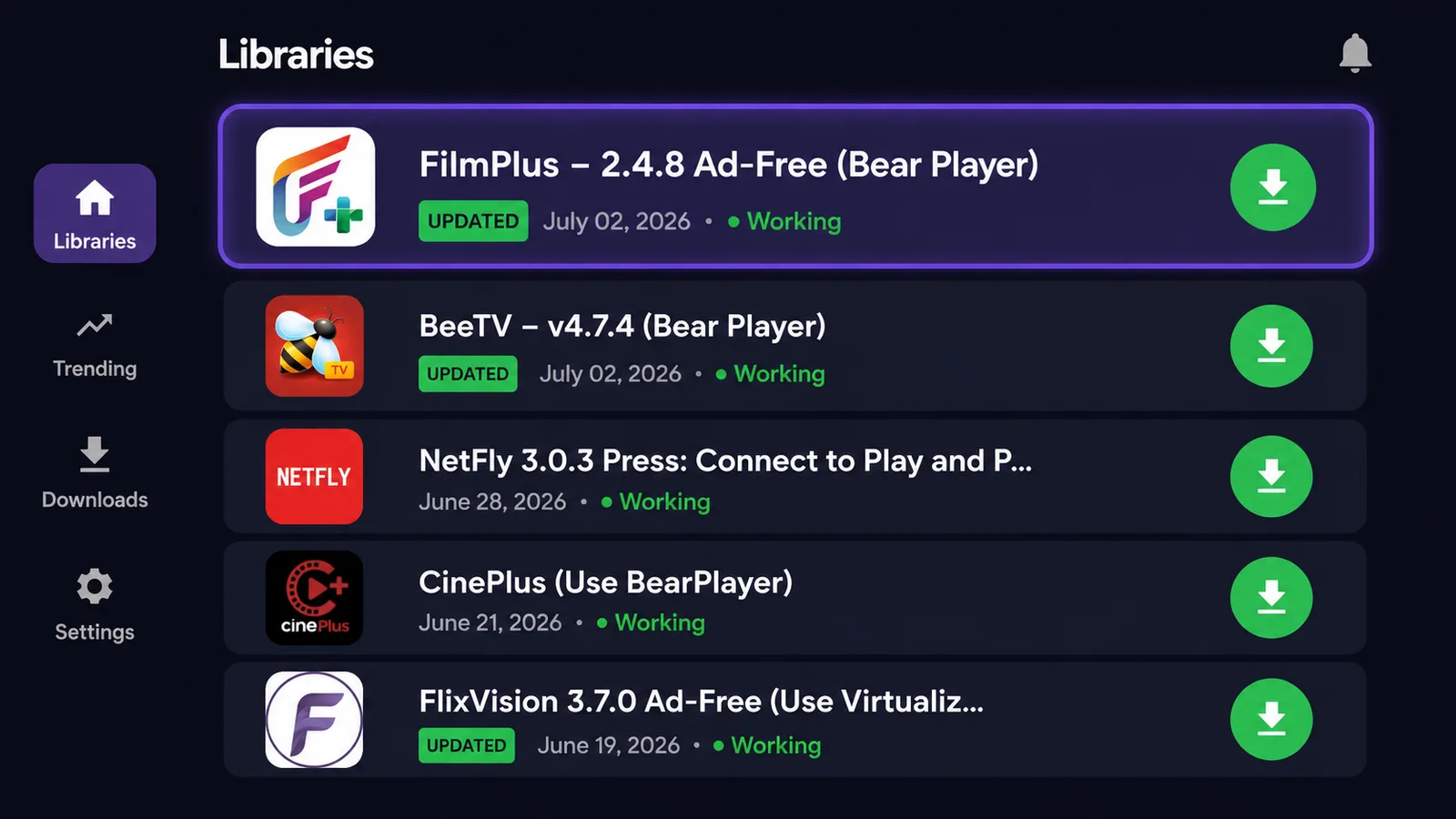
FilmPlus Ad-Free is available in my store setup, so you do not need to hunt around for random APK links. Use these options in this order.
- TV Wizard, easiest method. Open Downloader and type newstore.tv to install TV Wizard, my own setup app. It installs the app stores for you, including LinkDrop, Unlinked, and LinkBase, so you skip adding them one by one.
- LinkDrop, my own store. Open linkdrop.store and click Explore the collection to open the library. No code needed.
- Unlinked. Type unlinked.link in Downloader, install it, choose New Library, and enter the code firestick.
For more store options and the full setup flow, use my best Fire Stick app stores guide.
Install Fluid Player and FilmPlus Ad-Free
FilmPlus needs a player to work, so grab both from the same store while you are in there. Do the player first and you will not hit a dead end later.
- Open the store you installed through TV Wizard, or open LinkDrop from linkdrop.store.
- Go to the Media Players category and install Fluid Player first. This is what FilmPlus uses to play video, so it needs to be on the device before FilmPlus is any use.
- Now find FilmPlus Ad-Free in the movie and TV app section and install it.
- When the Fire TV install screen finishes, open FilmPlus Ad-Free from Your Apps and Channels.
- Grant any permissions it asks for, then open FilmPlus Settings and set the player to Fluid Player if it has not picked it up on its own.
Install FilmPlus on an ONN 4K or Android TV box
On an ONN box or Android TV, the fastest route is Browsy from the Google Play Store, using its codes. Same rule applies: install the player first.
- Install Fluid Player with Browsy code 7.
- Install FilmPlus with Browsy code 14.
Both are in our full Browsy codes list alongside every other app, so you can grab the rest while you are there. Open FilmPlus, set the player to Fluid Player in Settings, and you are set. New to the ONN box? See ONN 4K vs Fire Stick.
Set up FilmPlus Ad-Free for better viewing
FilmPlus is simple once it opens. The home screen gives you movies, TV shows, search, and categories. Pick a title, choose a stream link, and start playback.
Use these settings and habits for smoother viewing:
- Pick HD links first if your internet is average.
- Try 4K only if your Fire Stick, TV, and connection can handle it.
- If a link buffers, back out and choose a different link instead of fighting the same one.
- Use Search when the home screen is slow to populate.
- Keep the app updated through TV Wizard or LinkDrop when a newer build is available.
FilmPlus does not require a subscription or registration, which keeps setup quick on a Fire TV Stick.
Improve streams with a VPN
Some streams or categories may vary by region. I recommend IPVanish on Fire TV Stick because it is simple and fast for this kind of setup.
Use it like this:
- Get IPVanish.
- Open the app and sign in.
- Connect to a United States server with WireGuard.
- Open FilmPlus Ad-Free again and test the same title.
If a source still does not load, switch to another link inside FilmPlus.
Fix FilmPlus Ad-Free problems
Most FilmPlus issues come down to old app versions, cache buildup, or weak internet. Try these fixes in order.
FilmPlus keeps buffering
- Restart your router.
- Move the Fire Stick closer to the router if you use Wi-Fi.
- Try a lower quality stream, such as HD instead of 4K.
- Test another source link inside FilmPlus.
- Connect IPVanish to a United States server with WireGuard and reopen the app.
FilmPlus crashes or closes by itself
Clear the app cache:
- Open Fire TV Settings.
- Go to Applications.
- Open Manage Installed Applications.
- Select FilmPlus.
- Choose Clear Cache.
- Reopen FilmPlus Ad-Free.
Do not clear data unless you are okay with resetting the app completely.
FilmPlus shows no data or empty sections
- Force close FilmPlus and reopen it.
- Check that your Fire Stick is online.
- Clear the cache using the path above.
- Update FilmPlus Ad-Free from TV Wizard or LinkDrop.
- Restart the Fire Stick from Settings > My Fire TV > Restart.
FilmPlus will not install
- Make sure Install Unknown Apps is on for Downloader.
- Free up storage by removing apps you no longer use.
- Restart the Fire Stick and try the install again.
- Use TV Wizard from newstore.tv if direct installs keep failing.
Good alternatives in the same store
If FilmPlus Ad-Free is not giving you the links you want, install another app from TV Wizard or LinkDrop instead of searching random sites.
Good options currently in the store include:
- FlixVision Ad-Free
- OceanStreamz Ad-Free
- BeeTV
- OnStream
- Cinema HQ
- HDO Box
Install them through TV Wizard at newstore.tv or through LinkDrop at linkdrop.store.
Stay private on your Fire Stick with IPVanish
It's the VPN I run on my own Fire Stick. It hides what you stream and sideload from your internet provider, and unblocks a lot more.
Frequently asked questions
Does FilmPlus Ad-Free still work on Fire TV Stick in 2026?+
Yes. As of July 2026, FilmPlus continues to work on Fire TV Stick devices when you keep it updated and maintain enough free storage.
Does FilmPlus Ad-Free cost anything?+
FilmPlus does not require a subscription or registration. Install the app, open it, and start browsing the available movies and TV shows.
Which Fire TV Stick models work with FilmPlus Ad-Free?+
Any Fire TV Stick running a current Fire OS version should work, as long as it has enough storage and sideloading is enabled.
Why does FilmPlus keep buffering?+
Buffering usually means the source link is weak, your Wi-Fi is struggling, or the stream quality is too high for your connection. Try another link, use HD instead of 4K, restart your router, or connect IPVanish to a United States server with WireGuard.
How do you update FilmPlus Ad-Free?+
Open TV Wizard or LinkDrop, find FilmPlus Ad-Free again, and install the newest available version over the existing one.
What should you do if FilmPlus shows no data?+
Force close the app, clear its cache, check your internet connection, and update FilmPlus Ad-Free from TV Wizard or LinkDrop.
What media player does FilmPlus need?+
FilmPlus does not play video on its own, it needs Fluid Player. Install Fluid Player from LinkDrop (Media Players category) or with Browsy code 7, then open FilmPlus, go to Settings, and set Fluid Player as the player. If a title will not play, it is almost always because the player is missing or not selected.
Comments0
Join the conversation. Be kind, and no piracy talk.